How to use Creation Protector: from upload to your Patreon post
Updated 2026-11-27 · 5 min read
When you upload a file, Creation Protector gives you one protected link. Paste that link into a Patreon post, and whoever opens it has to sign in with Patreon and pass a tier check before the file downloads. After a one-time account setup, every work takes three steps: upload → copy link → paste into your post.
1. One-time setup
- Sign in with your Patreon creator account. Click Start for free on the home page and allow the Patreon connection. Only accounts with a creator page can sign up.
- Check your campaign and tiers, then save. On your first sign-in, Account settings opens with the campaign and tiers imported from Patreon. Check the tier names and save, and you are ready. The tips on screen walk you through it.
If you add or change tiers on Patreon later, import your Patreon details again from Account settings. Works you already added keep their tiers.
2. Upload a work
Click + Add work in the top right to open the form.
- Enter a Work title. Supporters never see it; it names the work in your list and download logs.
- Pick the Required membership tier. Choosing "Silver or higher" lets Silver and every higher tier download it.
- Leave Enable downloads on. When it is off, the link opens but nothing downloads. To prepare a file before the post goes live, turn it off now and on later.
- Click Upload and choose the file on your computer. When the upload finishes the work is added automatically; there is no separate save button to press.
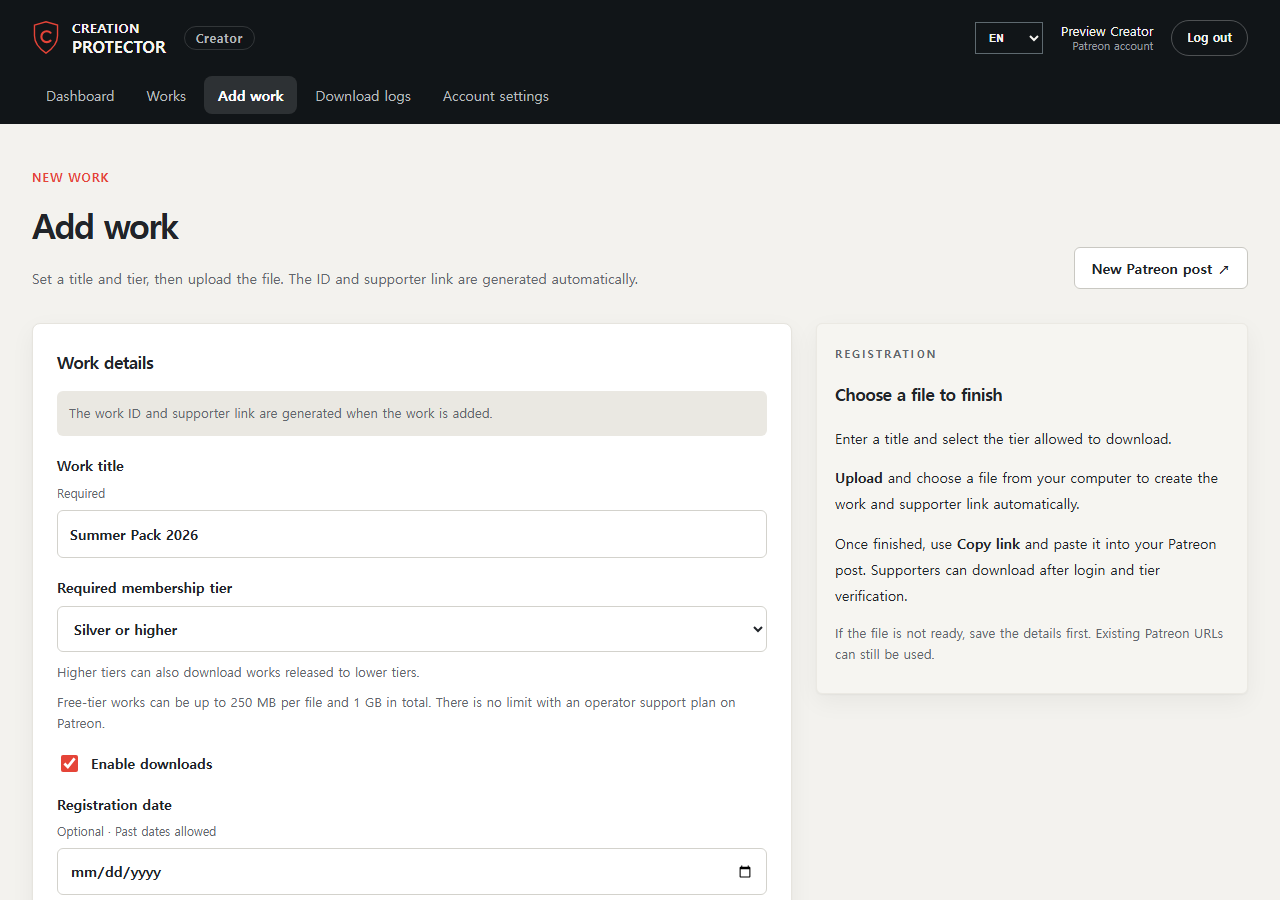
- Keep the window open while uploading. Wait until the progress bar finishes and "Work added" appears.
- Zip several files into one. Each work holds one file.
- Works open to your free tier can be up to 250 MB per file. Paid-tier works have no per-file limit beyond your account storage.
- No file yet? Save details only creates the work now so you can add the file later.
3. Copy the protected link
When the upload finishes, the Supporter link for your post appears.
- Click Copy link.
- Click New Patreon post ↗ to open the Patreon editor in a new tab. To use an existing post, open that post and edit it instead.
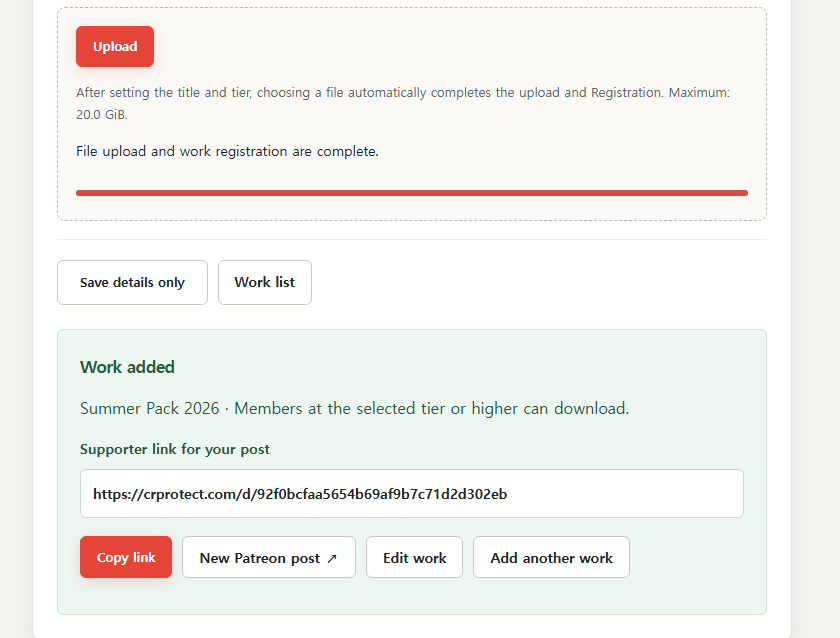
Need the link again later? Every work in Works has its own Copy link button.
4. Add it to your Patreon post (recommended setup)
The protected link checks the tier every time it is opened, so however you publish the post, only supporters at the right tier get the file. These setups still help: supporters are not confused, and the post can win you new ones.
Option 1. Match the post's audience to the work's tier
When you write the Patreon post, make it visible to the same tiers as the work's required tier. If the work is "Silver or higher", publish the post to Silver and above. The people who can see the post are then exactly the people who can download, so nobody asks "why won't this link open?"
Option 2. Preview in a public post, file behind the protected link
You can also post a preview image or description publicly and put the protected link in the same post. When someone who is not a supporter clicks it, they see the tier they need and a button to your Patreon page instead of the file, which turns curiosity into new pledges.
How to add the link
- Write a short note in the Patreon post and paste the protected link you copied.
- Do not attach the file to the Patreon post itself. Attachments do not go through the protected link.
- Replacing an old Google Drive or Dropbox link? Swap it for the protected link and turn off sharing on the old cloud link. Otherwise anyone holding the old link can still download.
A note like this tells supporters exactly what to do.
📦 Download (Silver and up)
Click the link below and sign in with Patreon to download.
Sharing the link won't help non-supporters: it only works for members.
👉 [paste your protected link here]
5. Managing works afterwards
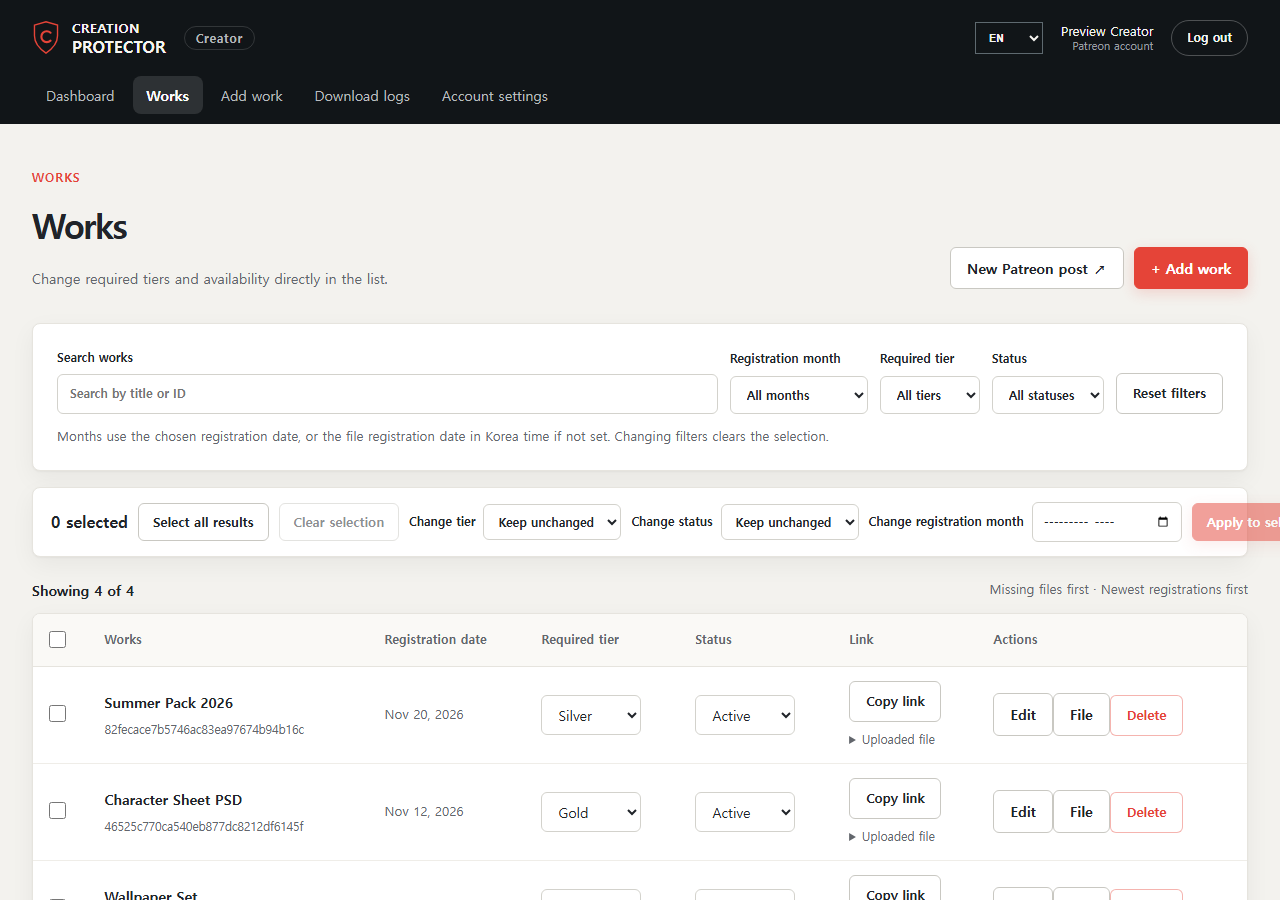
- Replace the file: Works → Edit → upload a new file. The same link now serves the new file, so the post stays as it is.
- Change the tier: change it right in the Works list, or select several works and change them at once. Links do not change.
- Pause downloads: set the status to Inactive and the link stops downloading.
- See who downloaded: Download logs show which supporter got which work and when.
- Check your own file: the File button in the list downloads your upload without a supporter check.
How-to FAQ
- Do supporters need to sign up for anything?
- No. After clicking the link they just sign in with the Patreon account they already use.
- If I update the file, do I have to change the link in my post?
- No. Click Edit in Works and upload the new file: the same link now serves it, so the post stays as it is.
- What happens if I close the window during an upload?
- The upload stops and the work is not added. Keep the window open until the progress bar finishes and 'Work added' appears.
- Can I put several links in one post?
- Yes. Every work has its own link, so one post can hold files for different tiers. Each supporter can only open the links their tier allows.
Try it with one work first. The free plan covers 5 works and 2 GB of storage.
Start for free